
What’s In This Article
- Key Takeaways
- Adding Partners to Your Workspace
- Partner Access and Permissions
- Partners in an Accord
Key Takeaways
- Add approved partner email domains in Settings → Partners.
- Add partners in bulk by email, or turn on auto-join so anyone from an approved domain joins as a partner.
- Partners can access your Accord workspace with read-only access to your Resource Library (CMS). They see content shared with “Everyone”, “Restricted” content shared with them, and any Hubs assigned to them.
- Partners never see Internal content.
- Partners can be added to individual Accords, where they appear alongside your team.
Note: Partner Licenses are only included with the Enterprise package of Accord. To learn more about our pricing and packaging options, contact sales@inaccord.com.
Adding Partners to Your Workspace
Adding Partner Domains
Accord identifies partners by their email domain. To add a partner domain, simply:
- Go to your Accord Settings.
- Click Partners in the Workspace section of the settings.
- Add each approved partner email domain separated with a comma.
Note: You must be an admin to access Workspace Settings. If you don't see the Partners option in your settings, contact your Accord Workspace Administrator.
Once a domain is listed as a partner domain, people from that domain join as partners. They can no longer be added to the Customer Team. If a partner has already been added to your Accord as a customer, simply select "⋮" in their contact tile and click "Make Partner" in order to properly designate them as a partner in your Accord.
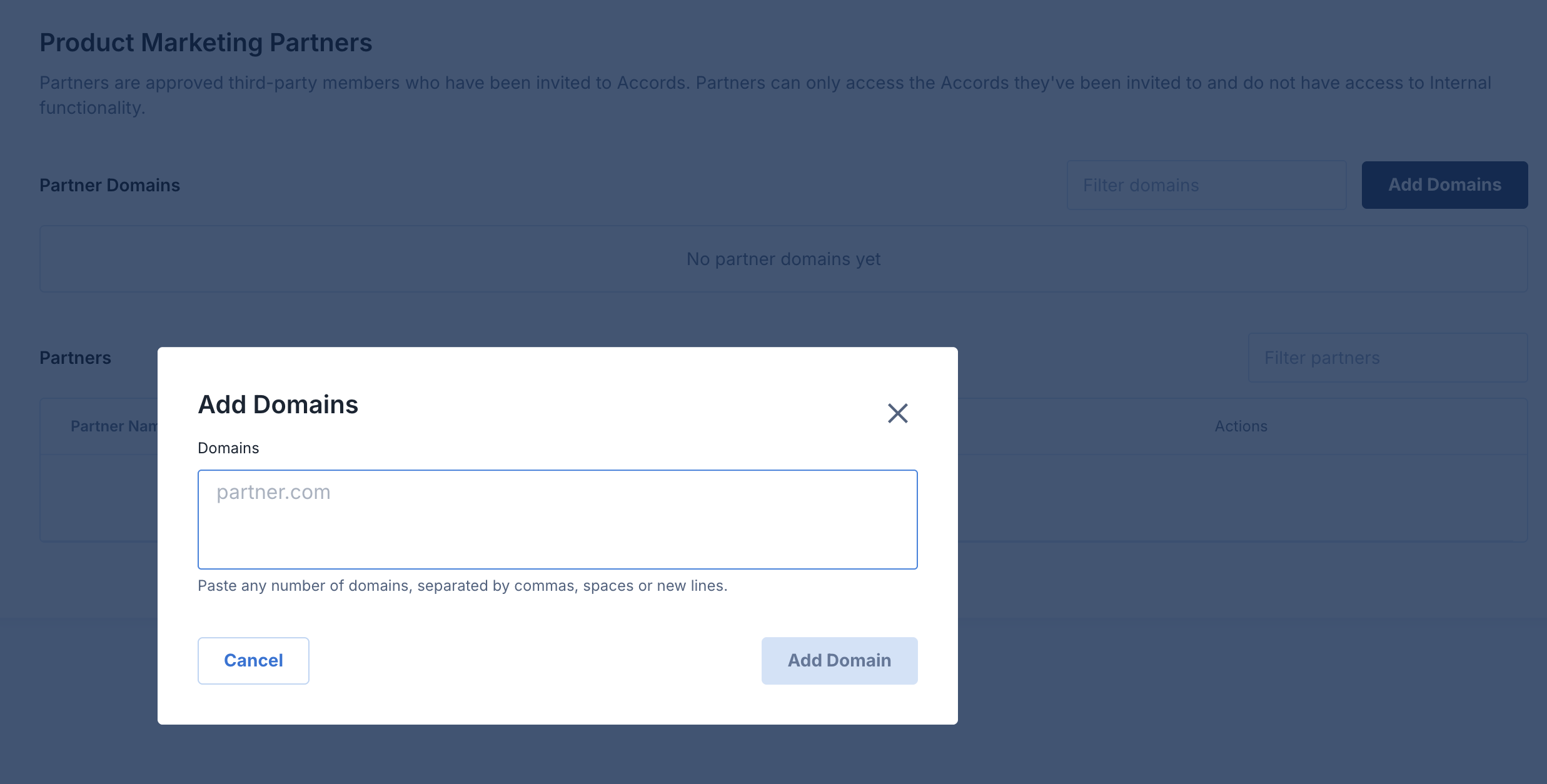
Adding Partners to Your Accord Workspace
Once a partner domain has been added, you can add partners into your Accord Workspace in two ways:
- Bulk upload: Add a list of partner email addresses to add a whole partner team at once.
- Auto-join: Turn on auto-join for an approved domain enabling anyone with an email address at that domain joins your workspace as a partner
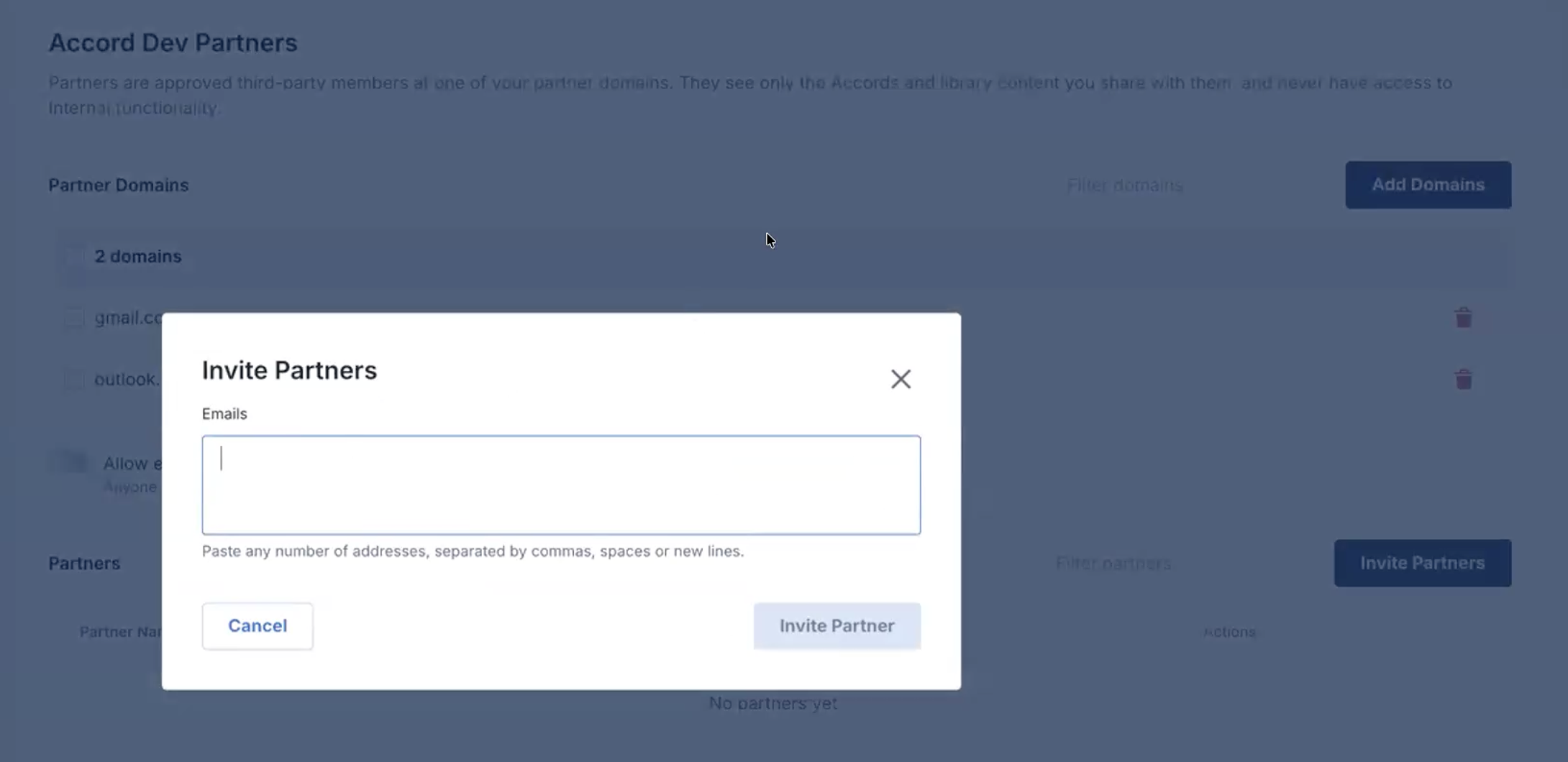
Partner Access & Permissions
Partners added to your workspace can directly access the Accord Resource Library (CMS) in read-only mode as their homepage. Within the CMS, partner visibility depends on each file’s visibility setting.
|
Content |
Visible to partners |
|
Resources, folders, and Hubs shared with Everyone |
Yes |
|
Restricted content shared with all partners, their domain, or partner users individually |
Yes |
|
Hubs and homepage with Restricted access assigned to them |
Yes |
|
Restricted content shared with other partners |
No |
|
Internal content |
No |
|
Accords |
Only Accords they’re added to |
Sharing Content With Partners
Search results show partners only the content they can access. Set content as Restricted to share content with specific partners without exposing it to buyers. Set Restricted on a folder, and every resource inside inherits it. Learn more in Restricted Resources.
Working With Partners in an Accord
Partners can also be added to individual Accords on the Team page. Inside an Accord, partners have the same permissions as Customers. This means that they can only access the Accord they are explicitly added to, and they cannot view any internal elements.
For a full list of customer permissions, please see User Permissions & Visibility Settings.