
The Resource Library (CMS) is only included with the Enterprise package of Accord.
To learn more about our pricing and packaging options, contact sales@inaccord.com.
Table of Contents
- What Is Restricted Visibility?
- Restricting Library Content
- Visibility Inheritance
- Using Restricted Library Resources in an Accord
- Restricting Resources to Specific Buyers
- Limitations
- Troubleshooting Restricted Resources
What Is Restricted Visibility?
Restricted provides a third option for resource visibility, alongside Everyone and Internal. A Restricted resource is visible to your internal team as well as specific partners. The restricted visibility setting is for content partners often require but customers shouldn't see, like battle cards, partner pricing, demo decks, and training. Inside an Accord,
Resources within an Accord that are detached from the Accord Resource Library (CMS) can also be shared with specific customers.
Restricting Library Content
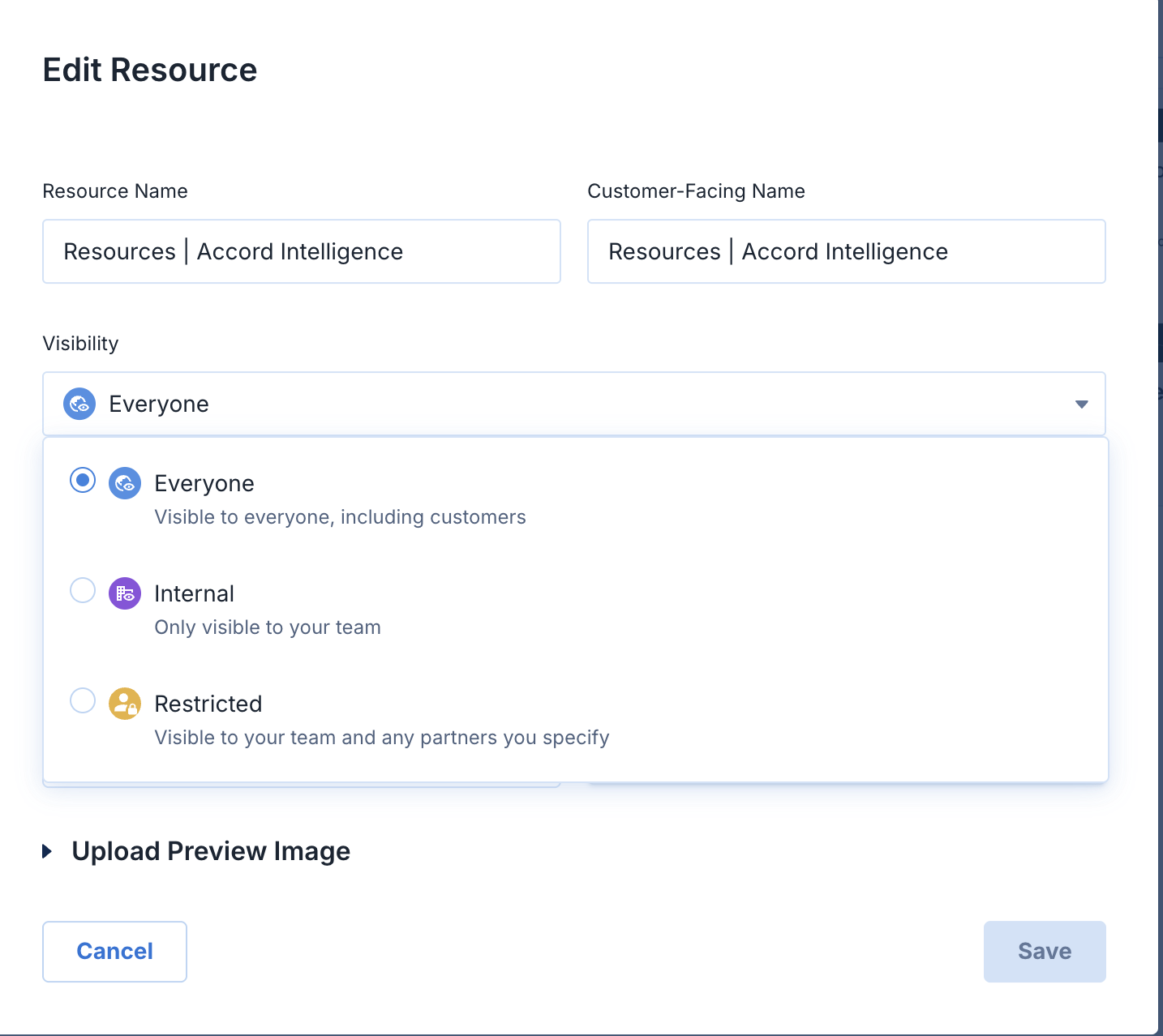
Restricted visibility is available for every resource, folder, and Hub in your Resource Library. To restrict a resource, simply:
- Navigate to Library
- Select "⋮" on the resource, folder, or Hub
- Select Edit Resource
- Select Restricted using the visibility toggle
- Select which audience has access to the resource: All partners, specific partner domains, or individual partners
Tip: Set visibility at the folder level. One setting on a folder covers everything inside it, including content you add later.
Visibility Inheritance
A Restricted folder's visibility passes down to every resource inside it. However, an individual resource can override its folder's setting if manually changed.
Here's how a partner-ready library might look:
|
Folder |
Visibility |
Who sees it |
|
Sales Playbooks |
Internal |
Your team |
|
Case Studies |
Everyone |
Your team, all partners, and customers in Accords that include them |
|
Partner Training |
Restricted: All partners |
Your team and every partner |
|
Reseller Pricing |
Restricted: reseller domains |
Your team and reseller partners |
Using Restricted Library Resources in an Accord
When you add a Restricted library resource to an Accord, it shows its shared audience inline, for example Restricted: Reseller partners. This label tells you who the content was meant for before you share it more widely. You can change a restricted resource's visibility inside an Accord by detaching it from the Library.
Restricting Resources to Specific Buyers
In some instances you may want some content to reach a specific customer stakeholder before the rest of the buying group. For example, a rep might share a quote with the economic buyer first, add procurement once the deal is moving, then bring in legal at signing.
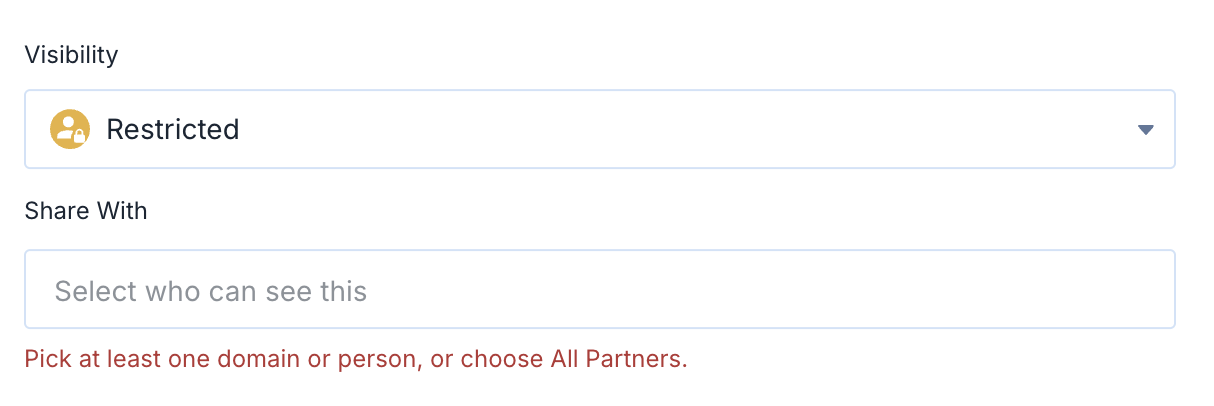
If a resource has been added to an Accord and is not attached to the resource library you can also share it with specific customers who have been added to the Accord. To do this:
- Navigate to the Resources page of your Accord
- Select "⋮" on the Resource
- Select Edit Resource
- Select Restricted and choose the stakeholders who can see it
To add an additional customer user, repeat the steps and add them to the list.
Limitations
-
Stages and steps: These support Internal only. See Internal Steps, Stages, and Resources.
-
Share Links: Share Links aren't available for Restricted resources. Add the resource to an Accord instead.
Troubleshooting
A partner can't see a resource.
Check the following in order:
- The resource's visibility. Internal resources never reach partners.
- The folder it sits in. Resources inherit their folder's visibility, so a resource in a Restricted folder only reaches that folder's audience.
- The audience list. Make sure the Restricted audience includes all partners, the partner's domain, or the partner individually.
- The partner's domain. Make sure their email domain is listed in Settings → Partners.
A partner can see a resource they shouldn't.
Resources set to Everyone are visible to every partner. Change the resource, or the folder it sits in, to Restricted or Internal.
A partner joined as a customer.
Their domain wasn't on the partner list when they were added. Add the domain in Settings → Partners, then select "⋮" on their tile in the Accord and click "Make Partner".
A new partner rep doesn't have access.
Add them by bulk email upload, or turn on auto-join for their domain so future reps join automatically.
A buyer can't see a resource in an Accord.
The resource may be restricted to other stakeholders. Open its "⋮" menu and add the buyer to the Restricted list.
I can't create a Share Link for a resource.
Share Links aren't available for Restricted resources. Add the resource to an Accord instead.
I can't set Restricted on a stage or step.
Stages and steps support Internal only. Restricted is available on resources, folders, and Hubs.
Two people see different search results.
Search shows each person only what they can access, so a partner's results won't match yours.
Still stuck? Contact support@inaccord.com.