
Tags is a function within the Resource Library (CMS) feature, which is only included with the Enterprise package of Accord.
To learn more about our pricing and packaging options, contact sales@inaccord.com.
What's in this Article?
What Are Tags?
Quickly accessing relevant and related Resources in your Accord workspace is essential for productivity. Accord makes it easy for admins to allow for this by organizing and connecting Resources through Tags.
Tags are labels that you can add to Resources, Folders, and Pages. These simple yet powerful pieces of metadata are used to categorize, manage, and quickly locate your Resources.
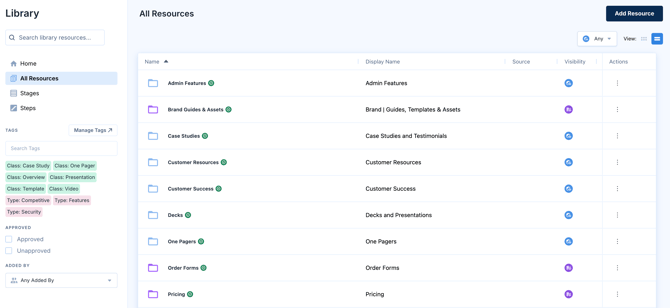
Tags serve multiple purposes:
- Organization: Categorize the Resources in your Library based on relevant topic(s).
- Search: Enable efficient filtering for users and admins within the Resource Library
- Share: Unify categorization across your organization by sharing Tags
- Visual Organization: Assign colours to tags so teams can scan and identify content at a glance.
Adding Tags
Adding Tags to content in the Resource Library is easy! Simply:
- Click on a piece of content (be it a Resource, a Folder, or a Page)
- Click "Edit / Edit Folder / Edit Page"
- Add the desired Tag in the Tags section of the pop-up modal
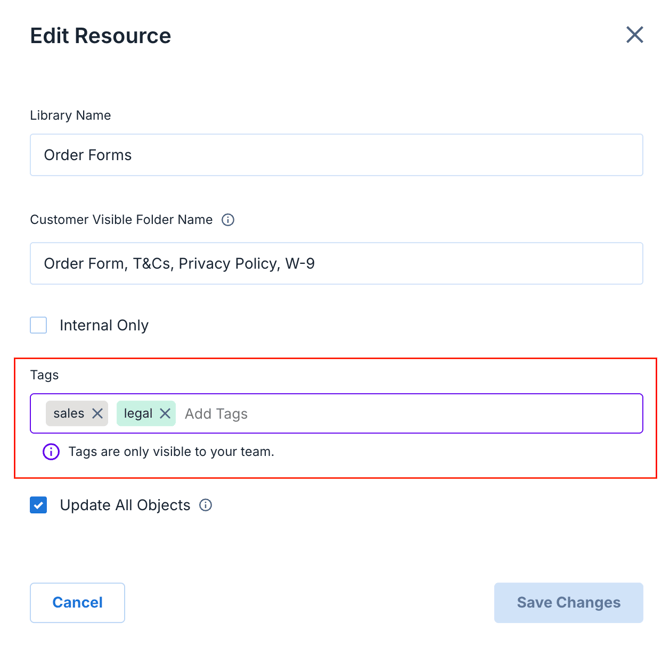
Before creating a new Tag, be sure to search for existing ones in the Tags section.
When you type a new tag, Accord will automatically match it against existing tags regardless of capitalization. For example, typing "sales" when a "Sales" tag already exists will apply the existing tag rather than creating a duplicate. Any trailing spaces are also stripped automatically to keep your tag library clean.
Remember: the primary purpose of Tags is discoverability. Users should be able to quickly locate the Resource that they're looking for using the Tags that you've set up.
Removing Tags
If you want to remove a Tag that you've applied to a Resource, simply:
- Click on a piece of content (be it a Resource, a Folder, or a Page)
- Click "Edit / Edit Folder / Edit Page"
- Select the "X" next to the Tag in question in the Tags section
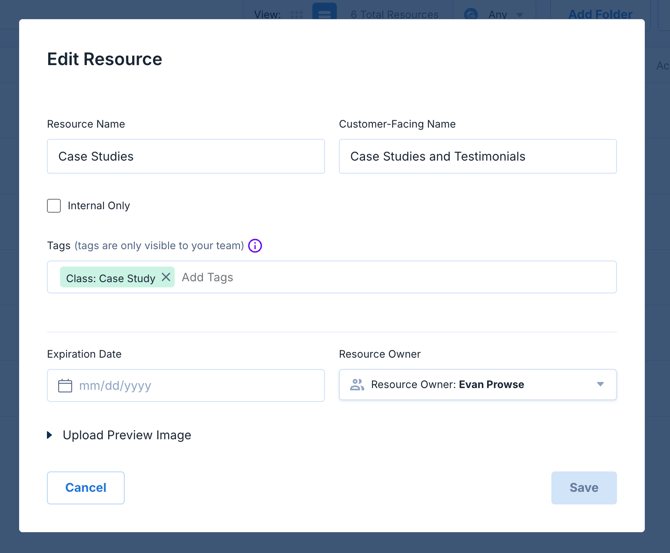
After deletion, if there are no more Resources with a specific Tag associated to it, the Tag will disappear from the Tags section in the navigation bar on the left-hand side of your screen.
To delete a tag from the entire library at once (across every Resource it has been applied to), use the Tag Manager described in the next section.
Managing Tags
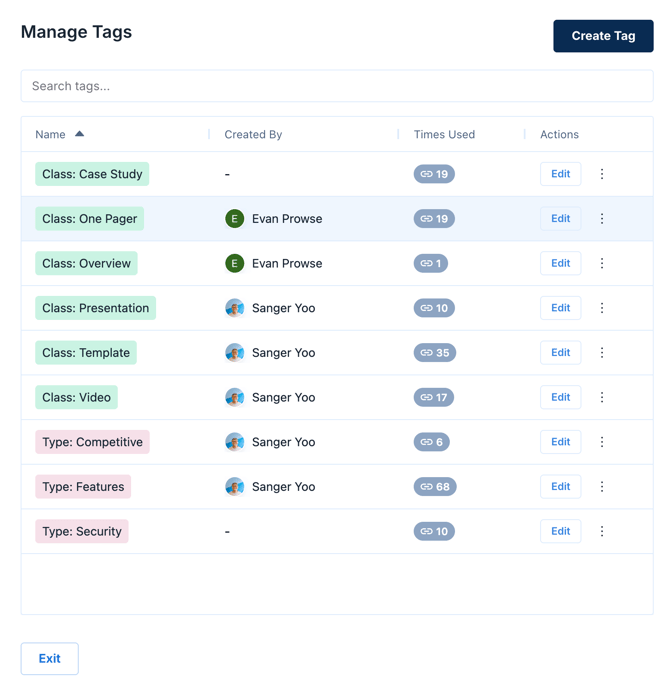
CMS Admins have access to a global Tag Manager that makes it easy to maintain a clean, organized tag library at scale. Instead of editing tags one resource at a time, admins can create, rename, recolour, and delete tags in one place, with changes cascading across every resource the tag is applied to.
Accessing the Tag Manager
The Tag Manager is available to workspace admins within the Resource Library. Navigate to the Resource Library, then open the Tag Manager from the Tags section in the side navigation bar.
Creating a New Tag (From the Tag Manager)
From the Tag Manager, admins can create new tags without needing to first apply them to a resource. This is useful for pre-building a tag taxonomy before uploading new content. To create a tag:
- Open the Tag Manager
- Click "Create Tag"
- Enter a name, optionally assign a colour, and save
Renaming a Tag (From the Tag Manager)
To rename a tag:
- Locate the tag in the Tag Manager
- Click the edit icon next to the tag name
- Enter the new name and save
When you rename a tag, the change is applied to every Resource, Folder, and Page that the tag was previously applied to. No manual updates required.
Merge on Rename: If you attempt to rename a tag to match an existing tag (for example, renaming "Case Studies" to "Case Study" when "Case Study" already exists), Accord will notify you and give you the option to merge the two tags. Merging combines all resources previously tagged with either tag under the single resulting tag.
Deleting a Tag (From the Tag Manager)
To delete a tag:
- Locate the tag in the Tag Manager
- Click the delete icon next to the tag name
- Confirm deletion
When you delete a tag, it is automatically removed from every Resource, Folder, and Page it was applied to. There is no need to manually remove the tag from each resource.
Searching for Tags
There are a number of different ways that admins and users can search for Resources using tags.
Using the library search bar
Just like users can search for Resources by name, they can search by the associated Tags of the Resources.
When a search query matches the name of a Tag, the dropdown suggestions will clearly point out the matching Tags in the query:
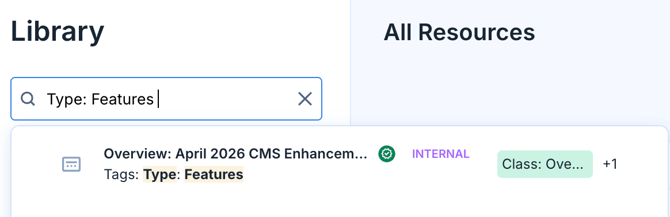
From there, you can select any of the suggested Resources or click "All Results" for an exhaustive list of Resources that match your search query.
Using the tag search bar
You can also search for tags using a dedicated tag search bar, to quickly surface the desired tag and its associated content. This search can be found under the tags section in the side navigation bar.
Using the Tags section in the side navigation bar
Within the Resource Library, there is a pervasive navigation bar on the left-hand side of the screen. Within the navigation bar, you'll see a Tags section that shows all of the Tags that are being used to organize and categorize the Resources within your Accord workspace:
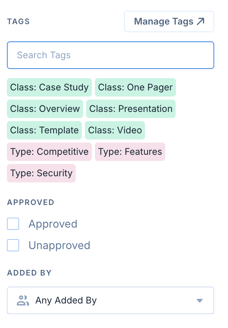
Tags in this section display in their assigned colours (if set by an admin) and appear in alphabetical order by default.
Clicking any of the Tags in that section will direct you to a list of all Resources, Folders, and Pages that are associated with that Tag:
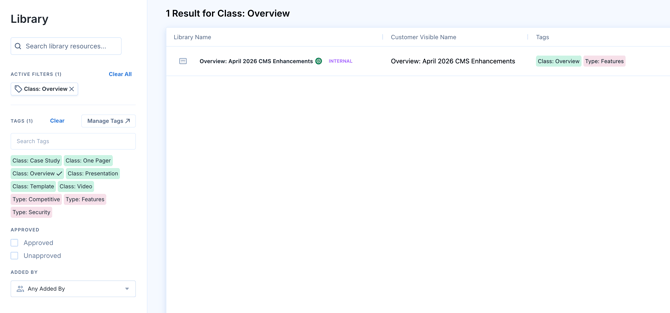
From there, you can choose to add more Tags to refine your search, or place additional filters based on "Added By" or approval status.
Sharing Tags
Sharing a list of Resources that are associated with a specific Tag is easy. Simply:
- Apply the relevant Tag(s) in the Tags section of the side navigation bar or search filters
- Copy the URL of the resulting webpage into your clipboard
- Paste the URL into an email/message
As long as the receiver of the URL has access to your Accord workspace, they should be able to see the same list of Resources that you can.