
Accord Agents Update (June 25): Accord Agents (beta) are now available on request for all Growth and Enterprise customers. Contact your CSM for more information.
Table of Contents
- What is Smart CRM Sync?
- Configuring Smart CRM Sync (Admins)
- Getting Proposals: Email Digest and In-App Notifications
- Reviewing and Approving Proposals
- Editing a Proposal Before Approval
- Troubleshooting
What is Smart CRM Sync?
The Smart CRM Sync agent reads the full context of a deal in Accord (call transcripts, deal room activity, MAP progress, stakeholder changes, resource engagement) and drafts updates to your CRM fields. Instead of asking reps to update the CRM manually after every call, the agent proposes updates that can be approved in batch from inside Accord.
Every CRM update proposal is grounded in the deal context Accord already captures, including transcript quotes for the rationale behind each proposed change. The agent is also methodology-aware: it reads your fields through frameworks like MEDDPICC, Challenger, and Command of the Message, so the proposed values fit how your team already talks about deals.
Note: All agents in Accord use the same “human in the loop” control model. Nothing is written to your CRM until a user in Accord approves it.
Prerequisites
To get the best results from the Smart CRM Sync Agent we recommend enabling the following features in Accord.
- Meeting Intelligence: Allows Smart CRM Sync to access call transcripts from Gong or Zoom (Coming Soon)
Configuring Smart CRM Sync (Admins)
Enabling Smart CRM Sync
In order to enable the Smart CRM Sync agent, a workspace admin must enable the agent from the workspace settings. Navigate to Settings→ Accord Intelligence → Agents and toggle the agent on.

Configuring Smart CRM Sync
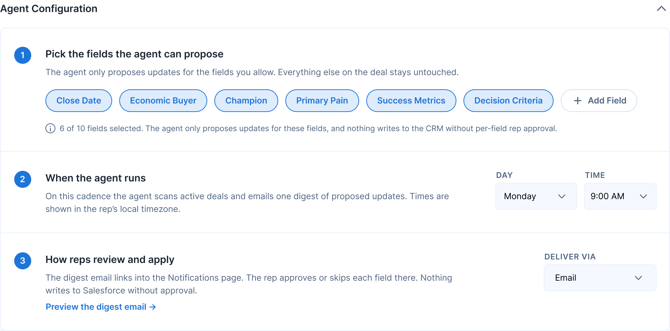
On a cadence your workspace admin sets (for example, daily at 9 AM, or weekly on the day and time you choose), the agent reviews the deals where you're the point person on a CRM-linked Accord and drafts proposed field updates.
- In Agent Configuration, select whichfields the agent should draft proposals for. The field list comes from your connected CRM instance.
- Choose the day(s) of the week and the time of day reps should receive their digest.
- Choose the delivery channel for proposals.
- Click Save Changes
Getting Proposals: Email Digest and In-App Notifications
When the agent has proposals for possible CRM updates, you’ll be notified in two ways:
- A digest email lands in your inbox with the proposals laid out per deal, showing current → proposed values.
- An in-app notification appears in Accord. Click it to open the approval slide-out directly to your latest batch.
If the agent has nothing to propose for your deals on a given run, you won't get an email or a notification.
Reviewing and Approving Proposals
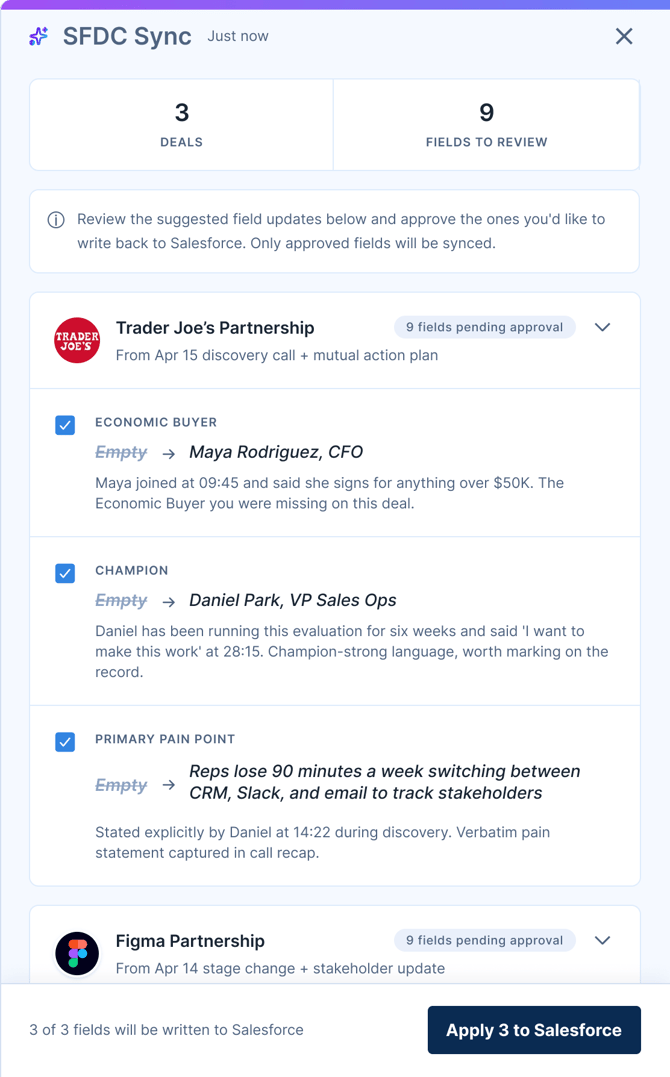
The approval slide-out is where you review and apply proposals. It groups proposals per deal so you can move through them one deal at a time.
For each proposed field update, the approval slide-out shows the CRM field name and object (Opportunity, Account, Contact, etc.), the current value in CRM, the proposed value drafted by the agent, and the rationale (the transcript quote or deal room signal the agent drew from).
To approve a batch of proposals:
- Open the Smart CRM Sync notification in Accord, or open your latest digest email and click into Accord from there.
- Review each proposal in the slide-out.
- Deselect any proposal you don't want applied.
- Click Apply to write the selected proposals to the CRM in one batch.
Audit Trail
Every proposal action is captured against the proposal record: the rep, the timestamp, the original draft, the final written value, and the source signal the agent used. Approved proposals show as `applied` with the CRMwrite result captured.
Last Write Wins
When you apply an approved proposal, Accord writes that value to the CRM immediately. If the CRM field changed between the time the agent drafted the proposal and the time you applied, Accord overwrites with the value you approved. The audit trail captures the prior value.
Pick list and field-type safety
The agent respects each CRMfield's type constraints. For picklist fields, the proposed value is always one of the field's legal options. Long-text fields are appended to rather than overwritten where appropriate. Length limits are respected so writes never fail on field-length errors.
Editing a Proposal Before Approval
If the agent's proposed value is close but not exact, you can edit before approving. From the slide-out, choose Edit on a single proposal, adjust the value, then approve. The edited value is what gets written to CRM. (the original draft stays in the audit trail alongside your edit.
You can also act on a single proposal at a time:
Reject marks the proposal as rejected. The agent won't write this value to the CRM, and the rejection is recorded for our learning loop.
Skip leaves the proposal pending. You can come back to it later, until the batch expires.
Batches expire seven days after they're created. When the agent runs again, any pending proposals from the previous batch are automatically expired.
Troubleshooting
No proposals = no email.
If the agent has nothing to propose for your deals on a run, you won't get a digest or a notification. This is intentional.
Eligibility is point-person on CRM-linked Accords.
If you're not the point person on the deal, the agent won't draft proposals for you on that deal.
Batches expire after seven days.
Pending proposals from a prior batch are automatically expired when the agent runs again, so you always work from the freshest set.
CRM connection required.
Smart CRM Sync is only visible in agent settings when your workspace has a connected CRM integration.
If you're having any difficulty with Smart CRM Sync, contact support@inaccord.com.