
Custom Workspace Views gives workspace admins the ability to configure and assign default Accord views by team or individual at the workspace settings level. Rather than relying on each user to find or build their own views, admins can set every role up with the filters, columns, and data they need from day one.
Table of Contents
- Who are Custom Workspace Views for?
- Assigning views by team
- Assigning views by member
- First-login experience
- Editing views from settings
Who are Custom Workspace Views for?
Custom Workspace Views lets admins assign and organize default views by team or individual directly from workspace settings. Every rep, SE, CSM, and manager lands in a workspace tailored to their role from their first login, with the right filters, columns, and data already in place, no manual configuration required.
Assigning Views by Team
Navigate to Setting → Custom Workspace Views and select the team you want to configure (e.g., Sales, SEs, CSMs). All available public custom views will appear with the ability to toggle them on, reorder them, and edit or delete them. You can filter for both teams and views if your lists are long.
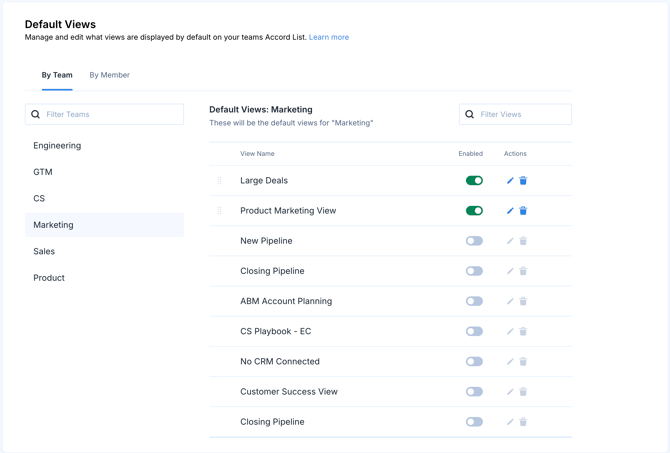
Note: Team assignments cascade to child teams. For example, assigning views to "GTM Team" will also apply to "Sales Team" if Sales Team is a child of GTM Team. If a child team has its own assigned views, those views take precedence over the parent team's assignments.
Assigning Views by Member
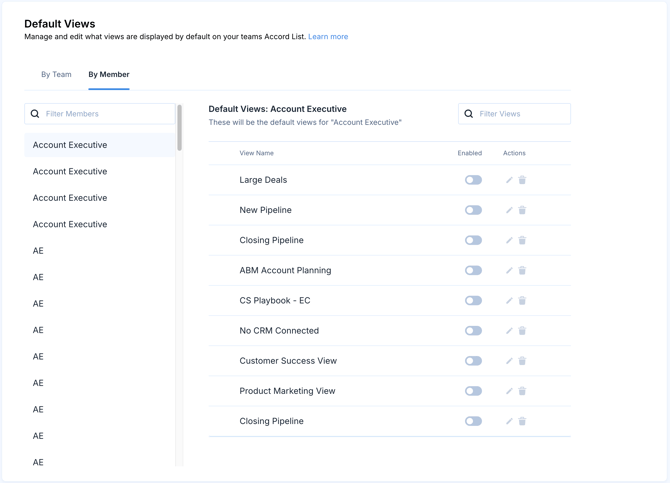
For cases where an individual user needs views beyond what is assigned to their team, navigate to the Member tab. Here, admins can apply individualized additional views for specific users.
Team-level views will be visible at the individual level but cannot be disabled. Any views added at the member level are in addition to the team-level views.
First-Login Experience
Users with assigned views will see only those views when signing in for the first time. The default views (My Accords, Member Of, Favorites, All, Archived) will not appear for new users with assigned views.
For existing users who have already logged in, assigned views will be added before the default views. The default views will not be deleted but will move to the end of their view list. Users can remove them later if desired.
Editing Views from Settings
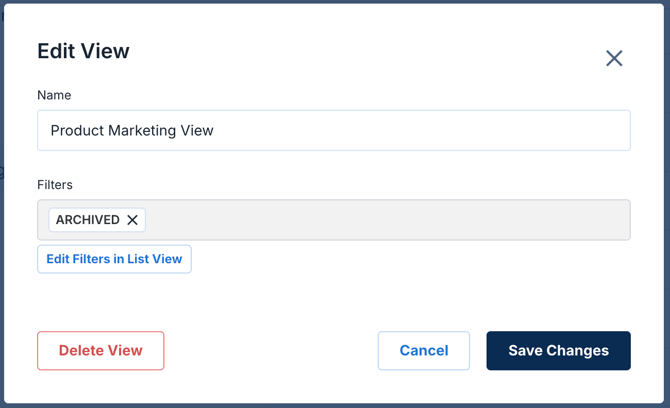
The "Edit View" action opens a read-only dialog showing the view's name and applied filters. To change the filters or columns for a view, click on “Edit Filterers in List View” to automatically navigate to Accord's list view where changes to custom views and filters can be made.
Tip: Learn more about setting up custom views here