
Table of Contents
- What is Language and Localization?
- Available Languages
- Selecting Your Language
- Automatic Language Detection
- Localized Dates and AI Insights
- Current Limitations
- Troubleshooting
What is Language and Localization?
Accord supports multiple interface languages and locale-aware date formatting. When you set a language on your profile, menus, buttons, settings, pages, reports, and notifications all render in that language.
Language is a personal setting. Each user selects their own language, so two teammates in the same workspace can work side by side, one in English and one in Spanish, without affecting each other.
Note: Language settings in Accord only impact the Accord interface. Content your team writes (Accord names, step descriptions, comments, playbook content) and data synced from your CRM stay in the language they were authored in.
Currently Available Languages
| Language | Availability |
| English (US) | All workspaces |
| English (Canada) | All workspaces |
| Spanish (Mexico) | All workspaces |
Selecting Your Language
You can change your language at any time from your Accord profile settings:
- Navigate to Profile → Settings→ Language Preference
- Open the language preference dropdown menu
- Select your language
Each language in the dropdown is displayed in its own script alongside an English label, so you can find your language even if the interface is currently set to one you don't read.
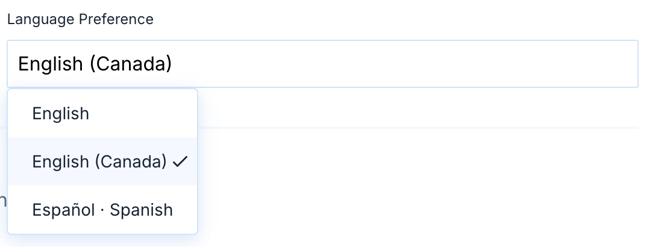
After you select a language, Accord reloads the page and the interface renders in your chosen language. Your choice is saved to your profile, so it follows you across browsers, computers, and devices.
Automatic Language Detection
If language and localization is enabled for your workspace and you have never set a language preference, Accord checks your browser's language the first time you sign in. If your browser is set to a language your workspace supports, the app loads in that language automatically and saves it to your profile.
Manual selections always take priority. Auto-detection only runs when your profile has no language set, and it never overrides a choice you made yourself.
Localized Dates and AI Insights
Beyond translated text, two other parts of Accord respond to your language setting:
Dates: Dates across the app (Accord grids, reports, CRM panels, date pickers, meeting tables, timeline) format according to your locale. A German user sees day-before-month ordering, while an English (US) user sees month-before-day.
Accord Intelligence insights: Insights from Accord Intelligence and activity from Accord Agents are produced in your selected language. Field names and statuses stay in their CRM source language, so they always match your CRM.
Current Localization Limitations
- Email: Email notifications are not yet localized. They arrive in English regardless of your language setting.
- Numbers and currency: Number and currency formatting is not yet localized. Values display in US formatting today.
Email and number localization are on our roadmap.
Troubleshooting
Some text is still in English after I switch languages.
Only Accord's interface is translated. Content created by your team (Accord names, comments, step descriptions) and data from your CRM stay in their original language. If you spot an interface label that didn't translate, let us know. We ship translation fixes regularly.
The app is in English even though my browser is set to another language.
Auto-detection only runs if language and localization is enabled for your workspace and you've never set a language on your profile. Check Profile → Settings → Language Preference to set it manually
The language I expected isn't in the dropdown.
We are currently working on adding support for several additional languages.