
Table of Contents
- Connect and Configure Zoom
- Using Zoom for Meeting Intelligence (Beta)
- Managing Zoom Calls
- Triaging Mismatched Calls
- Using Meeting Intelligence
Connect and Configure Zoom (Admins only)
- From your Accord workspace, go to Settings --> Workspace --> Integrations
- Click Connect next to Zoom to start the authentication process. You'll be redirected to your Zoom instance to grant Accord permission to access tour workspace.
- Once authenticated you'll be redirected back to the Accord settings page.
Using Zoom for Meeting Intelligence (Beta)
Note: This feature is currently in beta and is not enabled in workspaces by default. Please contact your CSM to request this feature.
As part of the Zoom integration, Accord uses meeting transcripts to fuel meeting intelligence in Accord workspaces.
Syncing Zoom Calls to an Accord
Note: Zoom calls must be recorded to the cloud
Once the Zoom integration is connected, call recordings stored in the cloud can be matched to their respective Accord based on participant email domain. When a call participant's domain matches one used in an Accord, the system suggests that call for Meeting Intelligence.
If calls took place before the Accord was created or Zoom integration was enabled, Accord will retroactively match them from the past 3 months.
Manually Adding Calls
The Accord's Point Person can also add Zoom calls manually. Under Meeting Intelligence, click Add Meeting and either past the Zoom call link (i.e. https://zoom.us/j/12345678901 )or browse the full list of meetings from your organizations Zoom instance.
Managing Zoom Calls
To view the call recording added to an Accords Meeting Intelligence:
- Click the Internal Only tab within an Accord
- Select Meeting Intelligence from the dropdown menu
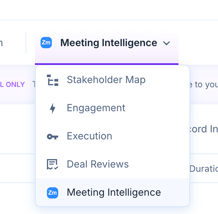
When a Zoom call is associated with an Accord, the Zoom icon appears on the Accord's Calls list to indicate the recording is linked. Each call entry displays the title, summary, date, duration, and a direct link to the recording within the Zoom platform.
Note: For security reasons, Accord does not currently support direct access to full transcripts or video files from within Accord.
Triaging Mismatched Calls
Most calls are matched automatically, but the Point Person retains full control over which calls are included.
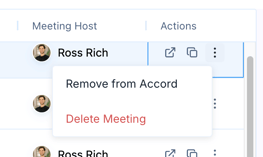
Dismissing a call: If a call is associated with your Accord that shouldn't be there (for example, an internal sync or unrelated meeting), click the kebab menu on the call and select Remove from Accord.
Using Meeting Intelligence in Accord
Accord uses Zoom calls to power Accord Intelligence. From the Summary tab, the Point Person can use Accord Intelligence to automatically research and populate:
- Executive Summaries
- Key metrics discussed on calls
- Pain points raised by stakeholders
- Deal objectives and desired outcomes
- Other custom fields built into your playbooks
In the future Accord Intelligence will leverage incoming Zoom calls to automatically suggest updates and keep your workspace up-to-date.

Accord Agents
Accord Agents make use of meeting intelligence to ground agent action in what was actually said on your calls. The following agents are currently available in beta (for Growth and Enterprise customers).
- Accord Agents: Meeting Prep
- Accord Agents: Automated Stakeholder Mapping
- Accord Agents: Smart CRM Sync
- Accord Agents: Next Best Actions
Removing the Zoom Integration (Admins Only)
To disconnect Accord from your Zoom account follow these steps:
- From your Accord workspace, go to Settings --> Workspace --> Integrations
- Click Disconnect next to Zoom to remove Accord's access to your Zoom account.
Once disconnected, no additional Zoom calls will be mapped to existing Accords, and the ability to manually add Zoom calls will be removed.
Any calls added prior to disconnecting the integration, will continue to be attached to their associated Accords. These calls can be removed manually by the admin or Accord owner.
Due to security purposes, no media files from Zoom are stored directly within Accord infrastructure. All user and organizational data stored within Accord can be explicitly deleted upon request.