
Modular Playbooks lets workspace admins add conditional logic to a playbook so that designated stages and resources appear based on deal context. Instead of maintaining dozens of near-identical playbooks for different verticals, product lines, or geographies, admins can manage one master playbook and let conditions handle the variation.
Table of Contents
- Who are Modular Playbooks for?
- Setting up condition types
- Applying conditions to a playbook
- Previewing conditional playbooks
- Updating conditions after Accord creation
Who are Modular Playbooks for?
Modular Playbooks are for anyone who's responsible for managing a Playbook in Accord.
If you've ever had to clone and update the same playbook across multiple verticals, product lines, or geographies, this feature is designed to solve that problem.
Setting Up Conditions
Conditions are defined at the workspace level in workspace settings. Only workspace admins can create, edit, or delete condition types. Conditions control when specific stages and resources should appear in an Accord. They can be configured using the "Make Conditional" option in the menu on stages and resources within your Playbooks.
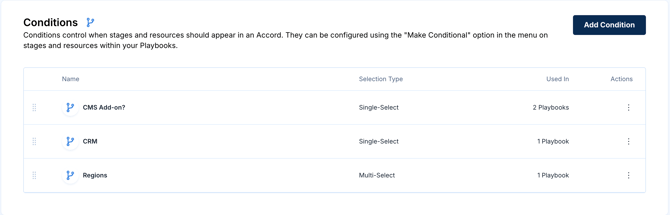
To create a condition type:
- Navigate to settings > workspace > conditions and define the condition type (e.g., Vertical, Product Line, Geo).
- Add the values or options for that condition (e.g., Vertical = Healthcare, Government, Retail).
- Choose the input type for the condition. Conditions can be configured as either a radio button (single-select) or multi-select input, depending on whether users should be able to select one value or multiple values when creating an Accord.
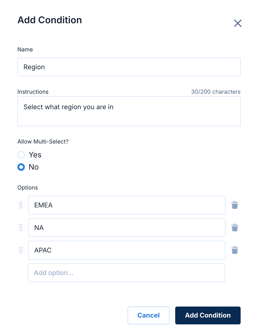
Condition types are shared across your workspace. Any playbook can reference the condition types you define here.
Applying Conditions to a Playbook
When creating or editing a playbook, admins can apply conditions to both stages and resources using the "Make Conditional" option in the menu on stages and resources within your playbooks.
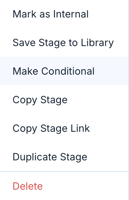
Note: In this release, admins can select one condition type per stage or resource (e.g., Vertical). Support for multiple condition types and additional logic is planned for future iterations.
If no condition type is selected on any stage or resource, the playbook behaves exactly as it does today.
Only stages and resources tagged with matching condition values will appear when an Accord is created under that condition.
Stages and resources without any condition tags will always appear, regardless of the condition selected. This lets you maintain a shared foundation across all scenarios while customizing only the parts that vary.
Applying Conditions to a Stage
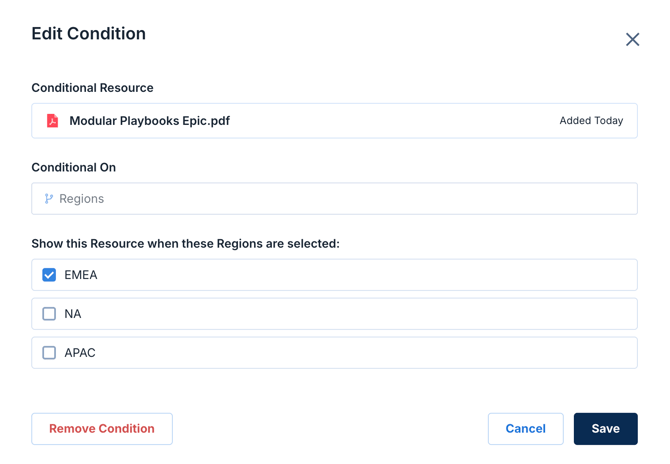
When applying conditions to a stage, select “make conditional” on the desired stage, select what condition the stage is conditional on and select the relevant options.
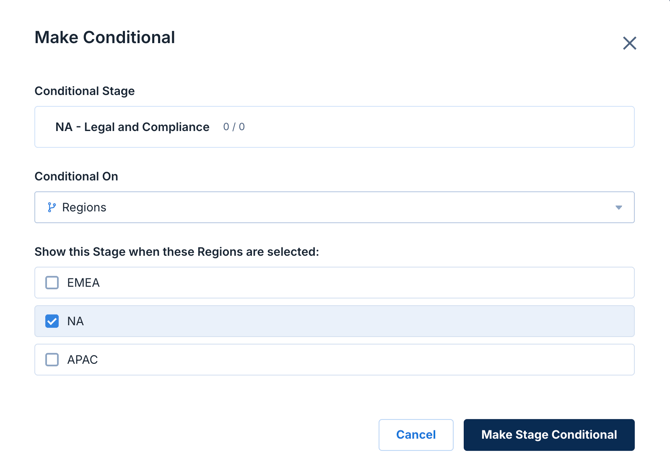
Conditions can also be applied to library stages within a playbook. These conditions are defined at the playbook level, not at the library level. This keeps library stages clean and reusable across different playbooks, while still allowing conditional behavior when the stage is used in a specific playbook context.
Note: In this release, only stages can be made conditional, not individual steps.
Applying Conditions to a Resource
When applying conditions to a resource, the same process as a stage applies.
Previewing Conditional Playbooks
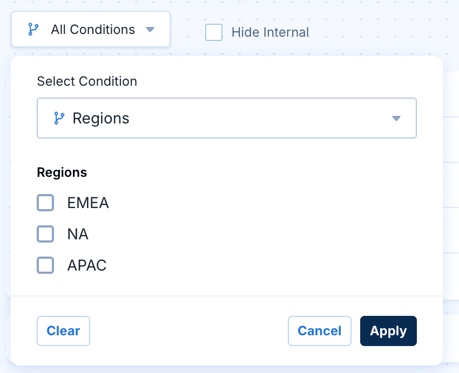
Before publishing, admins can preview how the playbook will appear for each condition value. This lets you verify that the right stages and resources surface for each scenario, catching any gaps or errors before reps start using the playbook.
Accord Creation
When creating an Accord from a conditional playbook, the user will be prompted to select the conditions that apply for that Accord. The input format (single-select or multi-select) will depend on how the condition type was configured in workspace settings.
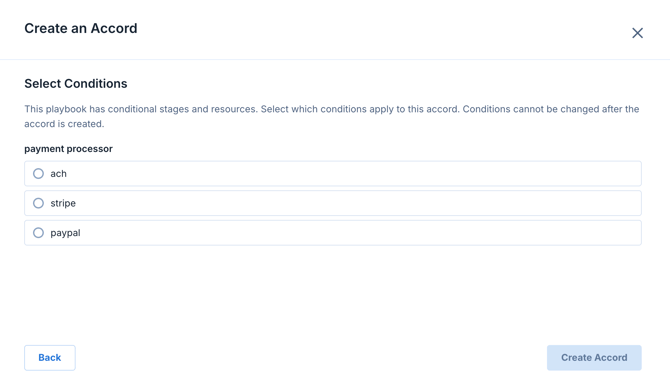
Stages and resources tagged with the selected condition values will appear in the Accord. Stages and resources without any condition tags will always be included, regardless of the selection. Any tagged stages or resources that don't match the selected values will not appear.
Once an Accord has been created, you can view additional details about any conditional selections by selecting “Edit Accord Details”
Updating Conditions After Accord Creation
In the current release once an Accord has been created from a playbook with conditions there is no way to retroactively change which conditions were selected. However, the owner of the Accord can add or delete resources and stages as they would in any Accord.