Table of Contents
What is CMS Smart Search?
CMS Smart Search makes it easier than ever to find the right resource for the right situation.
Search in the Accord CMS used to be literal. It matched your search terms against resource names, tags, and content, so finding something meant guessing the words of whoever uploaded it.
Now, CMS Smart Search enables the Accord CMS to understand the meaning behind your search. Describe your need in plain language and the right resource comes back, even if nobody named or tagged it that way.
Searching for “something for a security review” will surface your compliance material whether or not anyone tagged it with "security" Searching for handling pricing pushback will surface the objection-handling deck without you knowing its exact file name.
In addition,CMS Smart Search runs alongside the classic keyword search rather than replacing it. Results from both are blended, so an exact product name or acronym still finds its target resource.
Currently, Smart Search supports the following file types: pdf, ppt, pptx, xls, xlsx, xltx, doc, docx, csv, json, xml, html, htm, md, markdown, txt, rtf, numbers, pages.
Note: Newly added resources are processed for smart search shortly after they're uploaded or edited. A resource added moments ago may only be findable by its exact name for a short while.
Using CMS Smart Search?
CMS Smart Search is the default search engine powering the Accord CMS. Smart Search has no dedicated settings or per-user permissions, however it respects all library permissions, ensuring users only see the resources they could already open.
Smart Search provides several benefits over traditional search including:
- Plain-language, contextual search across your Accord library and within individual Accords
- A new overlay to enhance the search experience and preview results
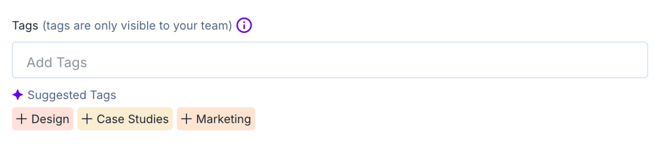
- Suggested tags for all library resources
- Suggested resources when adding resources to an Accord
Opening the Smart Search overlay
To use smart search simply, click the search box at the top of the Accord library sidebar which reads “search any resource”. Alternatively you can press ⌘K (Ctrl+K on Windows) anywhere in the library at any time.

Before you type anything, Smart Search shows you two lists to start from:
- Popular on your workspace, the resources your team uses most
- Jump back in · Recently opened, the resources you opened most recently
If you haven't opened anything in the library yet, you'll only see the popular resources.
Searching and previewing resources
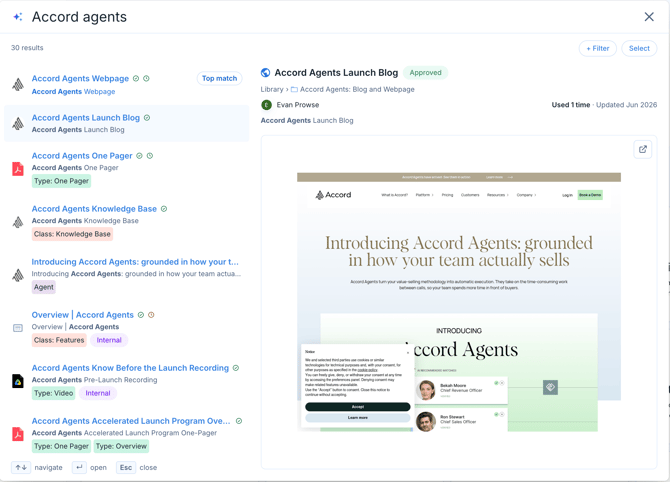
To make the most of Smart Search, simply type what you're looking for the way you'd say it out loud. Results appear as a ranked list on the left, with the closest result marked Top match. Each row shows the resource's tags, how many times your team has used it, and whether it's approved or expiring.
Select a result and it opens in the preview pane on the right, where you can read the actual document, watch the video, or scroll the page without leaving the search.
Note: Previewing an asset doesn't count as a view, so browsing won't distort your team's usage numbers.
To find and open a resource:
- Click search or use the overlay ⌘K (Ctrl+K on Windows)
- Describe what you need in plain language.
- Use the ↑ and ↓ keys or your mouse to navigate through results.
- Select a resource to see its preview in the right window.
- Press Enter or click on the resource again to open it, or click Open in new tab in the preview to open it alongside your current search
Narrowing results with filters
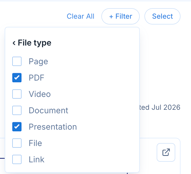
Click Filter to narrow your search results by tag, file type, approval status, or who added the resource. The file type filter groups resources into broad buckets rather than exact formats: PDF, video, document, spreadsheet, presentation, image, archive, file, link, page, and folder.
Note: Folders are only visible (and filterable) when searching for resources to add to an Accord or Playbook.
Using Bulk actions
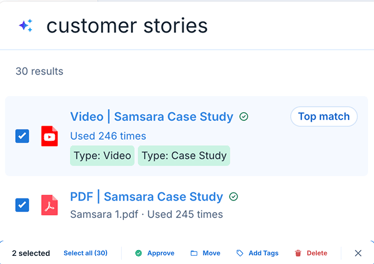
Click Select to switch into selection mode, then tick the resources you want. From there you can Move, Add Tags, Delete, or Approve them in one go, without leaving your search results.
Using Suggested tags
CMS Smart search will also suggest tags that can be applied to previously uploaded content. Tags will be suggested automatically from the content preview sidebar or when editing a resource if there is a good fit based on existing tags in Accord. If there is not a relevant tag in the system, no tag will be suggested.
Smart Search in Playbooks and Accords
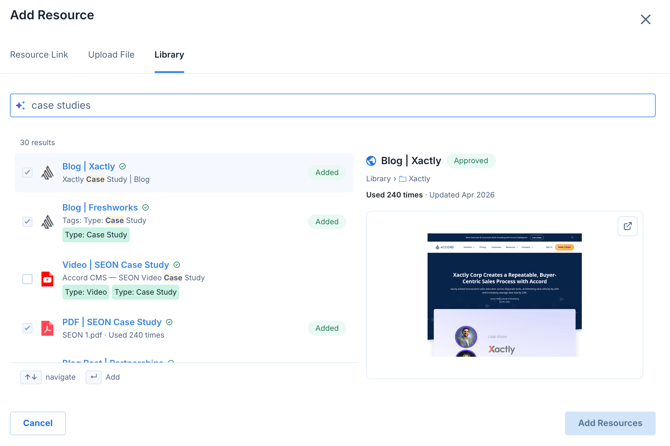
Smart Search also works when you're attaching content from your Accord CMS library to an Accord or playbook. Open Add Resource, go to the Library tab, and search the same way. You get the same ranked list and preview pane, and you can select several resources and add them together.
Before you type anything, the Library tab shows Suggested resources: Accord suggests library content similar to what's already attached to that Accord.
If the Accord has nothing attached yet, you'll see no suggestions and the default search experience.