
Accord Agents Update (June 25): Accord Agents (beta) are now available on request for all Growth and Enterprise customers. Contact your CSM for more information.
Table of Contents
- What is Automated Stakeholder Mapping?
- Configuring Automated Stakeholder Mapping (Admins)
- Building The Stakeholder Map: Editor and Tools
- Use Cases
- Agent Logic: Deciding What to Propose
- Authentication and Write Permissions
- Troubleshooting
What is Automated Stakeholder Mapping
Your stakeholder map is where you lay out the buying committee for a deal: who reports to whom, who your champions are, and who can block you. While a valuable tool, building one by hand takes time and often goes stale the moment a new name shows up on a call. Automated Stakeholder Mapping closes the gap.
When you create a new Accord linked to a Salesforce or HubSpot opportunity, the Automated Stakeholder Mapping Agent drafts an org chart from the deal's CRM contacts. Instead of building from scratch you start with a curated list of contacts. As the deal progresses, Accord uses your meeting transcripts to surface new stakeholders relationships keeping your map current without you tracking every conversation and doing research between calls.
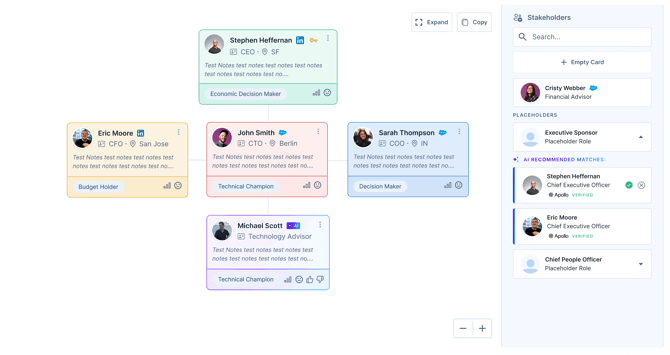
This agent also ships alongside a fully redesigned stakeholder map editor including:
- A tiered, multi-line layout,
- Drag-to-build reporting relationships,
- Per-card color options
- A sidebar of suggested contacts you can drop onto the canvas.
Note: All agents in Accord use the same "human in the loop" control model. Nothing is added to your stakeholder map until you review it and approve it.
Prerequisites
To get the best results from Automated Stakeholder Mapping we recommend enabling the following in Accord.
- Salesforce or HubSpot integration: The auto-seed agent draws its initial contacts from the linked opportunity or deal. Without a connected CRM deal, a new Accord won't be auto-seeded.
-
Meeting Intelligence: Allows the agent to make ongoing suggestions from processed meeting transcripts from Gong or Zoom(Coming soon). Without meeting transcripts, the map won't pick up newly mentioned people automatically.
Configuring Automated Stakeholder Mapping (Admins)
Note: Automated Stakeholder Mapping is currently in beta and enabled per workspace. The auto-seed agent, the ongoing meeting suggestions, and the redesigned editor are gated separately, so they can be turned on independently.
In order to enable the Stakeholder Mapping agents, a workspace admin must enable them from the workspace settings. Navigate to Settings → Accord Intelligence → Agents and toggle the agent on.
Like other Accord Intelligence agents, the stakeholder agents run automatically once enabled. There's no per-run schedule to set: the auto-seed runs once when a qualifying Accord is created, and meeting suggestions run whenever a new transcript is processed.

Building Your Map: The Updated Stakeholder Map Editor
The updated editor lays stakeholders out in tiered rows allowing you to build more than one reporting line on the same canvas. For example, a champion's chain alongside an evaluation panel, without forcing everyone under a single top node.
The sidebar on the right is your source stakeholders to add. It surfaces:
- Accord members already on the deal.
- Suggested contacts merged from your CRM and meeting intelligence participants.
- Placeholder roles from your playbook, with recommended contacts where available.
- An empty card for anyone you want to add by hand.
To build your map:
- Drag a tile from the sidebar onto the canvas. Tier rows highlight as you drag, so you can see which row you're dropping into.
- To show a reporting relationship, drag one card onto another. The target card shows a link indicator, and dropping makes the first card a direct report of the second.
- Use a card's menu to Change Color, Replace, or Remove it. Color is useful for grouping by function, or flagging champions versus blockers.
Using Automated Stakeholder Mapping
Note: All internal users of the Accord will be able to see both the suggested auto seed as well as ongoing.
Auto Seeding
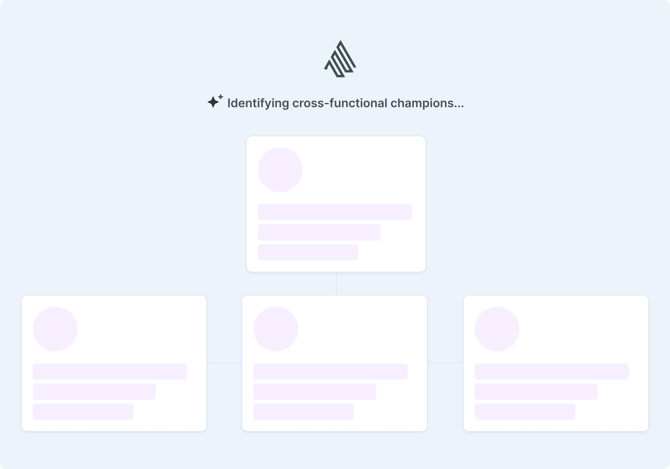
When you open a newly created, CRM-linked Accord, the agent gets to work building a draft map. You'll see a loading state on the canvas while it runs.
When the agent is done, a proposed map appears as a read-only, AI-styled draft on the canvas. Review it then either:
1. Click Looks Good to accept the draft. The cards transform to stakeholders on your map, and you can edit, rearrange, and add to them from there.
2. Click Clear Map to discard the draft if it isn't useful.
The auto-seed draft is all-or-nothing: you accept or clear the whole proposed map rather than picking individual cards. Once it's applied, every card is fully editable like any other.
Note: Auto-seed only runs on new Accords. Existing Accords are never auto-seeded, so a map you've already built is never overwritten.
Ongoing Suggestions
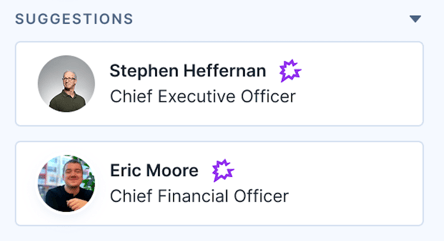
After the initial draft, the agent continues to monitor for new calls. When a new meeting transcript is processed and a new stakeholder is mentioned, for example "you should meet our VP of Finance", the agent proposes adding that person into the stakeholder map.
Unlike the initial draft, meeting-based suggestions come one card at a time, so you approve or reject each person independently from the stakeholder map editor sidebar.
The agent only suggests external stakeholders backed by explicit evidence in the transcript, skips third parties, and de-duplicates against people already on your map, including nickname matches like Bob and Robert at the same company.
Deciding What to Propose
The Stakeholder mapping agents decision logic is built around a few core principles:
Evidence over inference: A person is only proposed when there's a concrete source for them: a contact on the linked deal, or an explicit mention in a meeting.
Confidence-gated: All proposed candidates are scored, and low-confidence candidates are dropped rather than guessed onto the map. Decision-maker titles score highest.
Respect the seller: Playbook structure already on the map is respected, and a map the seller has started editing is never overwritten by a draft.
De-dup aggressively: People are matched by email, including nickname and same-domain matching, so the same person isn't proposed twice.
Exclude third parties: People who aren't part of the buying organization are filtered out of meeting-based suggestions.
Authentication and Write Permissions
CRM Access: The Stakeholder Mapping Agent reads through the workspace's existing Salesforce or HubSpot connection. It inherits that connection's permissions and reads only what the connected integration can already read in Accord. It uses no separate credentials.
The agent does not create, update, or delete anything in Salesforce or HubSpot. CRM data is read-only input. There is therefore no question of bypassing your CRM's validation rules, field-level security, or automation, because the agent never writes there.
Write Target: the only thing the agent writes to is the Accord's own stakeholder map, and only after a seller approves a proposal. The stakeholder map is a seller-only, internal surface; invited customer users cannot see or act on it.
Troubleshooting
The map wasn't auto-seeded when I created an Accord.
Auto-seed only runs on new Accords linked to a Salesforce opportunity or HubSpot deal. If the Accord has no connected CRM deal, or you built it before the feature was enabled, you'll start from an empty map and can build it using the sidebar. Existing Accords are intentionally never auto-seeded.
I added cards before approving, and the draft didn't apply.
If you start editing the map after the agent has drafted a proposal, Accord protects your work and won't overwrite it. Your cards stay put.
A contact I expected isn't in the draft.
The first draft is built from the CRM contacts on the linked deal. Meeting participants and other recommendations aren't used for the initial seed in this release. People with lower-confidence or missing titles may be left off the draft; add them from the sidebar.
I can't see the Stakeholder Map tab.
The Stakeholder Map is an internal, seller-only surface. Invited customer users don't see the Stakeholder Map or Execution tabs on an Accord.
The map looks different than before.
The redesigned editor rolls out behind a setting, and your existing map is migrated automatically to the new layout.
If you're having any difficulty with Automated Stakeholder Mapping, contact support@inaccord.com.