
Table of Contents
- Model Context Protocol
- Accord MCP Requirements
- MCP Permissions
- Common Configurations
- Troubleshooting
Model Context Protocol
What is a Model Context Protocol (MCP) Server?
MCP (Model Context Protocol) is an open-source standard for connecting AI applications to external systems. Using MCP, applications like Claude and ChatGPT can connect to data sources enabling them to access key information and perform tasks.
Accord's MCP Server
Accord’s MCP server, wraps the Accord Developer API providing read and write access to the same set of data endpoints. All MCP requests are tied to user level roles and permissions in your Accord workspace, meaning access to the Accord MCP server will always match the Accord data each user has access to from within the web app.
The real power of MCP emerges when multiple servers work together, combining their specialized capabilities through a unified interface. For example, you may want to leverage data from Accord + Gmail via its MCP connection to build a specific agent or workflow and write that data back to Accord.
Accord MCP Requirements
Note: Write access via the Accord MCP server is restricted to enterprise workspaces. All workspaces can enable the Accord MCP sever for read-only use cases.
In order to use the Accord MCP server the following is required:
- An active Accord workspace and your workspace slug (aka the part of the URL before .inaccord.com)
- A client that supports remote MCP servers over HTTP (i.e., Claude Code, Claude Desktop etc.)
- The Accord MCP endpoint (see below)
- The configuration JSON snippet
The Accord MCP Endpoint
An MCP endpoint is a standardized URL or network address that acts as the secure bridge between AI models (like Claude or ChatGPT) and external data sources or tools.
The Accord MCP Endpoint
- Name: accord-mcp
- Transport: http
- URL: https://api.inaccord.com/1/mcp/mcp
Note: Keep the endpoint URL and your workspace slug handy as both will be required during setup
The Configuration JSON Snippet
Most clients that support MCP servers accept the same JSON snippet for configuration. Copy this and use it where indicated below.
{
  "mcpServers": {
    "accord-mcp": {
      "type": "http",
      "url": "https://api.inaccord.com/1/mcp/mcp"
    }
  }
}
For more details on specific client configuration see Common Configurations.
The Authentication Process
The Accord MCP server uses OAuth 2.1 with PKCE to authenticate every connection. Authenticating does not require setting up API keys or tokens, your MCP client (i.e., Claude) handles the OAuth handshake automatically.
Note: Ensure your browser is signed into the Google account associated with your Accord workspace before starting setup. If you use multiple Google accounts, the OAuth screen will let you pick.
What to expect the first time you connect:
- After adding the server in your client (see Common Configurations), the client will trigger an authorization request.
- Your default browser will open to the Accord sign-in page at
api.inaccord.com/1/mcp/authorize. - You’ll see a “Sign In to Accord” screen
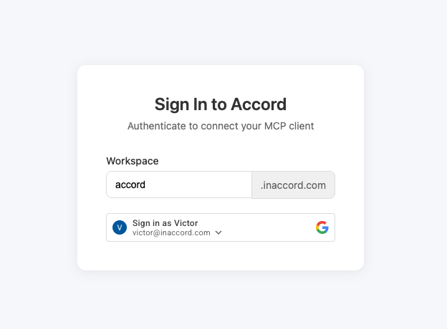
From there:
- Enter your workspace slug in the Workspace field (e.g.
acmeforacme.inaccord.com). - Click Sign in as [your name] (Google SSO) to authenticate.
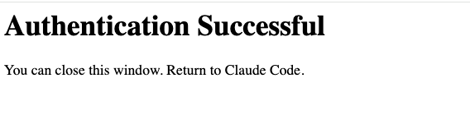
- When you see the “Authentication Successful” page (“You can close this window. Return to Claude Code.”), the handshake is complete and you can now close the browser tab and return to your MCP client.
Note: For non-Google users, The Google button will change to “Login using SSO” and clicking on it will redirect to their sso or organizational login.
After the first sign-in your client securely stores the access token, so you won’t need to sign in again unless the token expires or you remove the server.
MCP Permissions (Enterprise Only)
Note: Custom MCP Permissions are available for enterprise workspaces only
Managing Roles and Permissions
Accord uses a roles and permissions system to dictate which users can access the Accord MCP server, as well as the actions they can perform.
A role is the term used for a named set of permissions. Every workspace starts with two built-in roles Workspace Admin and Member with the ability to add more from a list of presets, or (for enterprise customers) the ability to fully customize and create new roles.
Workspace Admins can manage the available roles for their organization in:
Settings → Permissions
MCP Level Permissions
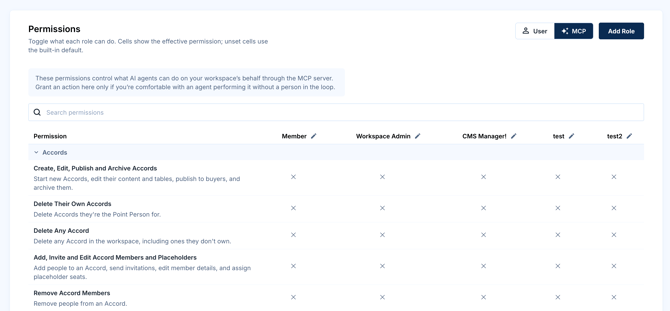
In addition to the full set of user permissions available in Accord, Enterprise workspaces have access to an additional “MCP” tab that allows full control over what actions AI agents can perform via MCP.
User is what a person can do when they're working in Accord themselves. MCP is what AI agents can do on your workspace's behalf. Grant permissions only if you're comfortable with an agent performing it without a person in the loop.
The toggle above the permissions grid switches between User permissions and MCP permissions.

Agent access can never exceed a user’s own access. If a role does not have the correct permissions to perform an action as a user, granting access in MCP mode has no effect. Revoking a permission in User mode also revokes it for agents.
Writing to Accords
The Accord MCP server can be used to edit individual Accords. By default roles in Accord can only edit Accord's they are a member of (both in the web-app and over MCP).
To enable edits for Accords you are not a member of, ensure your role has access to the permission "Edit Non-Member Accords."

Common Configurations
The Accord MCP Server can be configured for use with several MCP clients including:
- Claude
- Claude Code (CLI Command Line Interface)
- Cursor
- Gemini CLI
- Additional Clients supporting MCP Servers
Configuring Claude (Admin Setup)
Claude admins can connect Accord once for their entire workspace. No downloads or technical setup required.
Steps:
- In Claude, go to Organization Settings → Connectors
- Click Add → Custom → Web
- Enter the following:
- Name:
Accord - Remote MCP server URL:
https://api.inaccord.com/1/mcp/mcp
- Name:
- Click Add to save


That's it — Accord is now available as a connector for everyone in your Claude workspace. Individual users can enable it from the tools menu in any chat and authenticate with their Accord account on first use.
Requirements:
- Claude admin (Owner) permissions
- Claude Team or Enterprise plan
Note: In the current implementation, Accord’s MCP server is not yet available from the list of prebuilt plugins.
Configuring Claude Code (CLI)
Note: These instructions assume Claude Code has been previously set up via the Command Line.
Run this single command from your terminal:
claude mcp add --transport http accord-mcp https://api.inaccord.com/1/mcp/mcp
To verify it was added run:
claude mcp list
You should see accord-mcp in the output. The first time you start a Claude Code session and use an Accord tool, the CLI will print a URL.
Open it in your browser, enter your workspace slug, and complete sign-in (see Authentication) After that, the tools will be available in every session.
Configuring Cursor
- Open Cursor and go to Settings → MCP (or Cursor Settings → Features → MCP).
- Click Add new MCP Server.
- Choose HTTP as the type.
- Enter:
- Name:
accord-mcp - URL:
https://api.inaccord.com/1/mcp/mcp
- Name:
- Save. Cursor will open a browser window to the Accord sign-in page — enter your workspace slug, complete Google sign-in, and wait for the “Authentication Successful” page (see Authentication ). The server will then appear in your MCP list with a green status.
Alternatively, you can edit ~/.cursor/mcp.json directly:
{
  "mcpServers": {
    "accord-mcp": {
      "type": "http",
      "url": "https://api.inaccord.com/1/mcp/mcp"
    }
  }
}
Configuring Gemini CLI
Add the following in ~/.gemini/settings.json
"mcpServers": { "accord-mcp": { "httpUrl": "https://api.inaccord.com/1/mcp/mcp", "oauth": { "enabled": true } } }
Once you start Gemini. To trigger the login flow type…
/mcp auth accord-mcp
Other Clients
If your client supports remote MCP servers, look for a settings option that accepts an HTTP transport. Provide:
| Field | Value |
| Name | accord-mcp |
| Transport | http |
| URL | https://api.inaccord.com/1/mcp/mcp |
For clients that only support a config file, drop in the JSON block from the top of this guide.
Troubleshooting
The server doesn’t show up after restart
- Double-check the JSON syntax. A missing comma or bracket will cause the config to fail.
- Make sure you fully quit the app (not just closed the window) before reopening.
Connection errors
- Confirm you can reach the URL from your machine:
curl -I <https://api.inaccord.com/1/mcp/mcp> - Check your firewall or VPN. Corporate networks sometimes block MCP traffic.
Tools list is empty
- Verify your client supports MCP version compatible with the server (most recent client versions do).
- Try removing and re-adding the server.
Read access but no write access
- Verify that your workspace is on our Enterprise plan
- Confirm your role in Accord has the correct permissions enabled to use MCP write functionality
- Try removing and re-adding the server.
Browser doesn’t open for sign-in
- Some clients only trigger the OAuth flow when you first invoke an Accord tool. Try asking your assistant to use any Accord tool to kick off the auth flow.
- Check that your default browser is set correctly at the OS level.
“Workspace not found” or sign-in fails
- Make sure you’re entering just the slug (e.g.
acme), not the full URL (acme.inaccord.com). - Confirm you can sign in to
https://<your-slug>.inaccord.comdirectly in your browser. If that fails, contact your workspace admin.
I never see the “Authentication Successful” page
- The browser may have blocked the redirect. Check your browser’s pop-up blocker and any privacy extensions.
- Try the auth flow in an incognito/private window if a conflicting Google account is interfering. a Tokens expired / I need to re-authenticate
- Remove the server from your client and re-add it to trigger a fresh OAuth flow.
- In Claude Code:
claude mcp remove accord-mcp, then run theclaude mcp addcommand again.