
Note: Summary Section Updater is included for customers with Accord Agents. Contact your CSM for more information.
Table of Contents
- What is the Summary Section Updater?
- Prerequisites
- Configuring the Summary Section Updater (Admins)
- Summary Section Updater Triggers
- Getting Summary Suggestions
- Reviewing and Accepting Summary Suggestions
- Troubleshooting
What is the Summary Section Updater?
The Summary Section Updater is an Accord Agent that keeps the summary current for you. When a new call transcript is linked to an Accord, the agent reads it, finds what materially changed (stakeholders, timelines, pricing, risks, and decisions), and suggests edits to the summary sections your team already maintains. If the deal outgrows the current structure, it can also suggest a new section. For example, if you learn on a call that the CFO now owns the budget, the edit to your decision process section is waiting for you when the call ends.
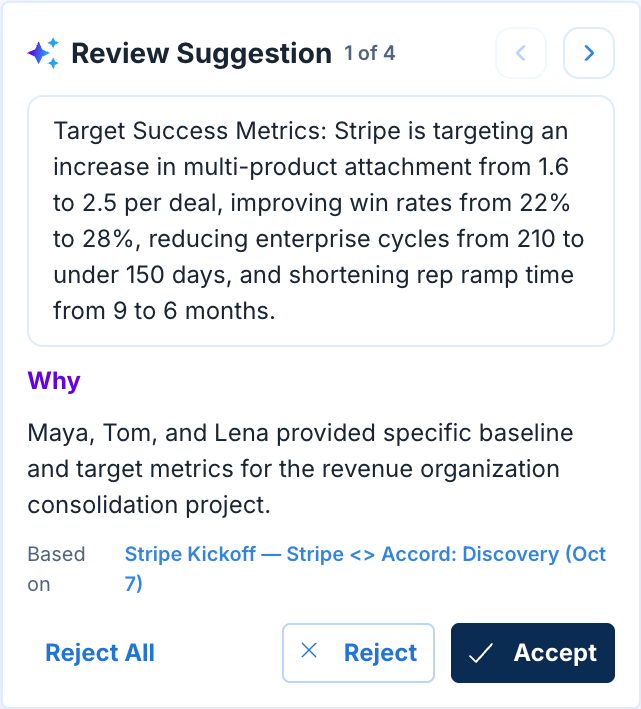
Each suggestion shows the proposed wording, a short explanation of why the agent suggested it, and the call it came from. The Accord's Point Person reviews each one and accepts or rejects it. When a call adds nothing new, the agent suggests nothing.
The Summary Section Updater works alongside Summary Auto-Generate. Summary Auto-Generate writes the first draft of the summary when an Accord is created. The Summary Section Updater keeps that summary up to date after each call.
Note: All agents in Accord use the same "human in the loop" control model. Nothing is written to your Accord summary until a user in Accord approves it.
Prerequisites
To get the best results from the Summary Section Updater, enable and configure the following in Accord:
- Meeting Intelligence: Allows the agent to read call transcripts from Gong or Zoom. For setup, see Connect Accord to Gong and Connect Accord to Zoom. The agent also runs on transcripts added to Accord manually. Without a linked call, the agent has nothing to read and won't suggest anything.
- A summary with Text sections: The agent only edits Text sections on the Summary page, so it needs a summary to work from. For more information, see Summary Page.
- A playbook template and a customer domain: The agent only runs on Accords created from a playbook template that have a customer domain set.
Configuring the Summary Section Updater (Admins)
Enabling the Summary Section Updater
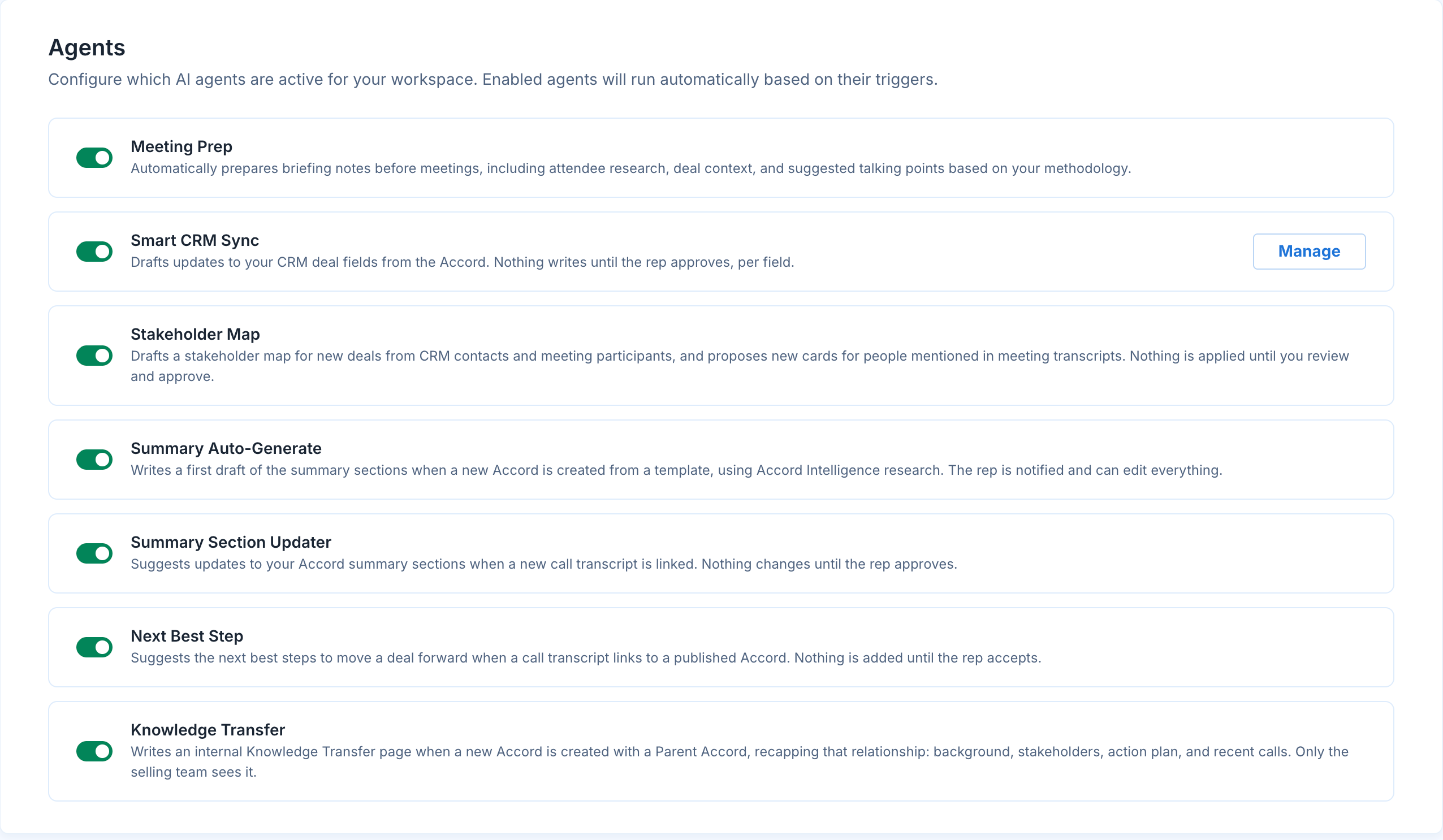
In order to enable the Summary Section Updater, a workspace admin must enable the agent from the workspace settings. Navigate to Settings → Accord Intelligence → Agents and toggle Summary Section Updater on.
Summary Section Updater Triggers
The agent runs each time a new call transcript is linked to an Accord. It reads every call on the Accord that it hasn't processed yet, so a suggestion can draw on more than the most recent call.
The agent runs when all of the following are true:
- The Summary Section Updater is enabled for your workspace.
- A new call transcript is linked to the Accord from Gong or Zoom, or added manually.
- The Accord was created from a playbook template and has a customer domain.
- The Accord can be a draft or published.
Getting Summary Suggestions
When the agent has suggestions for an Accord, the Point Person is notified in two places:
- You get an in-app notification, "New summary suggestions from your latest call." Click View to open the Accord's Summary page.
- On the Summary page, each section with a suggestion shows a suggestion pill next to the section title, and the summary navigation shows how many suggestions are waiting.

If a call adds nothing new to the deal, the agent makes no suggestions.
Reviewing and Accepting Summary Suggestions
Suggestions appear directly on the Summary page, next to the section they apply to. Each suggestion card lines up with the proposed edit in the text, so you can read the change in context. The card shows the section title, a short rationale, and a Based on line that links to the call the suggestion came from.
To review summary suggestions:
- Click View on the notification, or open the Accord's Summary page.
- Open a section with a suggestion pill next to its title.
- Read the proposed edit in the text and the rationale on the card.
- Click Accept to apply the edit to the section, or Reject to discard it.
- Use the arrows on the card to move to the next suggestion.
Each suggestion stands on its own, so accepting one doesn't act on the others. There is no option to accept or reject every suggestion at once, so you review each one individually.
Suggestions can apply to summaries your customers can see. The agent keeps internal commentary and candid deal assessments out of customer-facing summaries and places risk and strategy context in Internal Only summaries. Review each suggestion before you accept it.
What the Agent Suggests
The agent makes small, specific edits to a section. A suggestion might add or rewrite a phrase, a bullet, or a table row.
- Text sections only: The agent only suggests edits to Text sections. It can suggest a new Text section, but it never creates a new summary.
- CRM fields stay as they are: The agent doesn't edit sections that contain CRM fields.
- A few high-impact changes per call: Each run suggests at most three section edits and one new section, picked by how much they matter to the deal.
- Existing sections first: The agent prefers to update an existing section. It suggests a new section only when the call raises a topic none of your sections cover, and places it on the summary that covers the closest topic.
Troubleshooting
I'm not seeing any suggestions.
The agent only runs on calls linked to an Accord, so check that Gong or Zoom is connected and the call is linked to the right Accord. The Accord also needs a playbook template and a customer domain. The agent stays quiet when a call doesn't change anything material, so no suggestions is the expected result for a routine check-in.
A teammate can't see the suggestions.
Only the Accord's current Point Person can see and act on summary suggestions. If someone else should review them, make that person the Point Person.
A section never gets suggestions.
The agent only edits Text sections and skips sections that contain CRM fields. Other section types won't receive suggestions.
Suggestions from an earlier call disappeared.
A new call replaces the suggestions still waiting from the previous run. Review suggestions after each call so they don't get replaced before you act on them.
The agent is turned off.
Your Summary page works exactly as it always has, and you can edit sections manually. You won't see suggestions until a workspace admin enables the agent.
For more on other agents, see Accord Agents: Next Best Actions, Accord Agents: Meeting Prep, Accord Agents: Smart CRM Sync, and Accord Agents: Automated Stakeholder Mapping.
If you're having any difficulty with the Summary Section Updater, contact support@inaccord.com.