
Note: Knowledge Transfer is included for customers with Accord Agents. Contact your CSM for more information.
Table of Contents
- What is Knowledge Transfer?
- Prerequisites
- Configuring Knowledge Transfer (Admins)
- When Knowledge Transfer Runs
- Generating Knowledge Transfer Manually
- Reviewing and Approving Knowledge Transfer
- Limitations
- Troubleshooting
What is Knowledge Transfer?
When an account moves to a new owner, such as from sales to implementation or from implementation to Customer Success, the relationship history often stays with the previous rep: the real decision-makers, the negotiated terms, the risks, and why the customer bought. The new owner ends up digging through Slack threads and call recordings, or asking the customer to repeat themselves.
The Knowledge Transfer agent packages that history into a single handoff page. When a new Accord is created with a Parent Accord, the agent drafts an internal Knowledge Transfer page that recaps the relationship: background, stakeholders, action plan, and recent calls. The new owner reviews it before the first handoff call, so the trust built during the sale carries into onboarding and renewal.
The page stays internal. Only your selling team sees it.
Note: All agents in Accord use the same "human in the loop" control model. Nothing is written to your Accord until a user in Accord approves it.
Prerequisites
To get the best results from the Knowledge Transfer agent, we recommend the following.
- A connected CRM: Knowledge Transfer finds the Parent Accord through your CRM. It supports the Salesforce account, HubSpot company, or NetSuite customer that a deal belongs to. See Salesforce Integration: Setup Guide or HubSpot Integration: Setup Guide.
- An account-level Accord: The Parent Accord must exist before the new deal Accord is created. If no account-level Accord exists at that moment, the new Accord has no Parent Accord and the agent does not run automatically.
- Meeting Intelligence: Lets the agent include recent calls in the recap. Connect Gong or Zoom.
- Playbook positioning: The agent reads your positioning context to shape the handoff for each transition type, such as account to implementation or implementation to post-sales. See Best Practices for Playbook Positioning.
Configuring Knowledge Transfer (Admins)
Enabling Knowledge Transfer
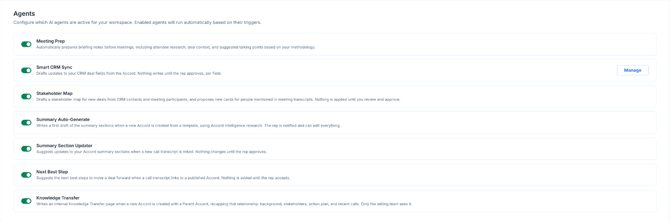
In order to enable the Knowledge Transfer agent, a workspace admin must enable the agent from the workspace settings. Navigate to Settings → Accord Intelligence → Agents and toggle the agent on.
Configuring Knowledge Transfer by Playbook
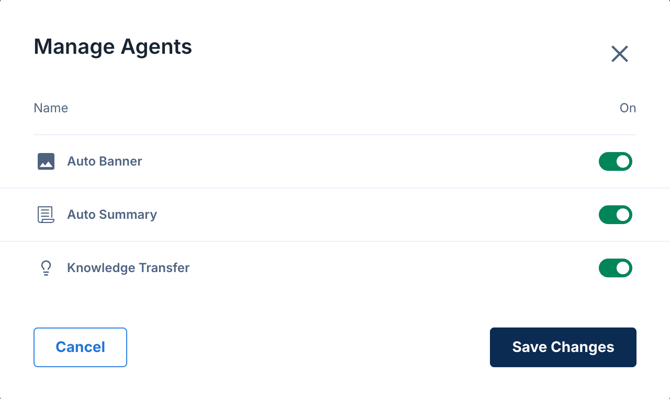
You can turn Knowledge Transfer on or off for each Playbook.
- Navigate to Playbooks.
- Click the menu icon on the Playbook's row.
- Select Manage Agents.
- Toggle Knowledge Transfer on or off.
- Click Save Changes.
When Knowledge Transfer Runs
The agent runs automatically when a new Accord is created, and all of the following are true:
- The Knowledge Transfer agent is on in Settings → Accord Intelligence → Agents.
- Knowledge Transfer is on for the Accord's Playbook.
- The new Accord has a Parent Accord.
- The Accord was created by automatic Accord creation from your CRM, or manually from a Playbook. Accords created from scratch don't get a Parent Accord.
The agent drafts the page from the newest deal Accord that shares the same Parent Accord. If there isn't one, it drafts from the Parent Accord itself.
Setting the Parent Accord at Creation
When you create an Accord from a Playbook and select an opportunity, Accord shows the Parent Accord it found for that opportunity. If it picked the wrong Accord, change it before you create the Accord. If Accord finds no match, the field stays empty.
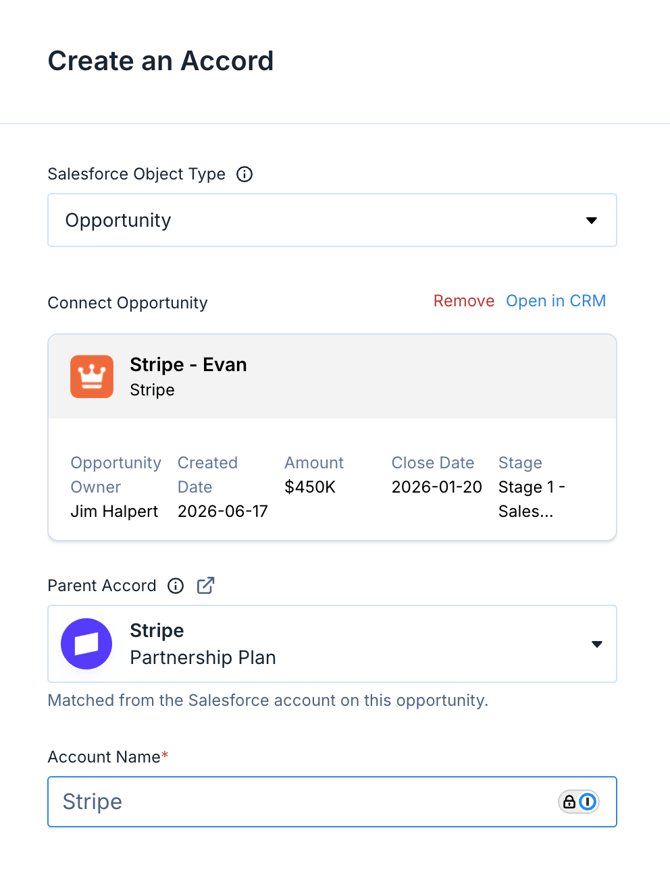
The Parent Accord is set only when the Accord is created. To change it later, use Generate Knowledge Transfer (see below).
Generating Knowledge Transfer Manually
Use Generate Knowledge Transfer when the agent didn't run on creation, when the Parent Accord is wrong, or when you want a fresh recap.
To generate Knowledge Transfer:
- Open the Accord and go to the Summary tab.
- In the page list, click Generate Knowledge Transfer.
- Under Parent Accord, confirm the Accord shown or select a different one. The field shows the saved Parent Accord. If none is saved, it shows the Accord matched through your CRM, with a note saying so.
- Click Generate Summary.
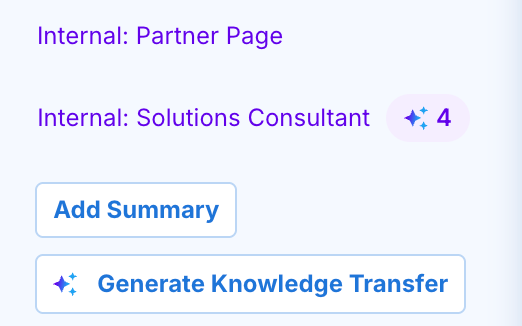
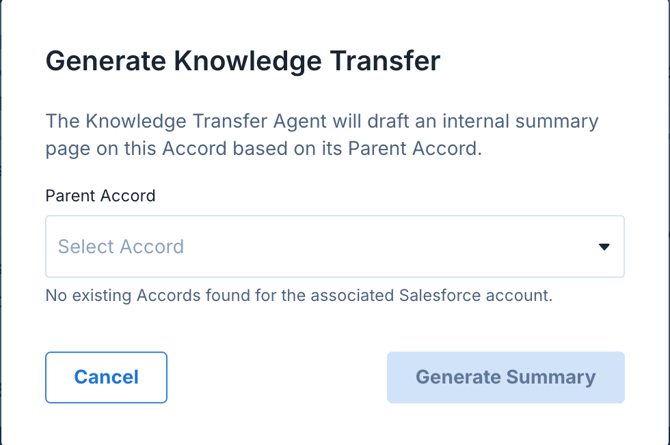
If you change the Parent Accord, Accord saves the new link first and then starts the agent. If the save fails, the agent does not run. You can also select None to clear the Parent Accord, and use the link in the picker to open the selected Accord in a new tab.
Note: The Generate Knowledge Transfer button doesn't appear on account-level Accords or on Playbooks. Customers can't set or change the Parent Accord.
Reviewing and Approving Knowledge Transfer
The agent drafts the page, and you review and apply it. Until you approve it, nothing is added to your Accord.
Once approved, the Knowledge Transfer page appears in the Summary page list as an internal page.
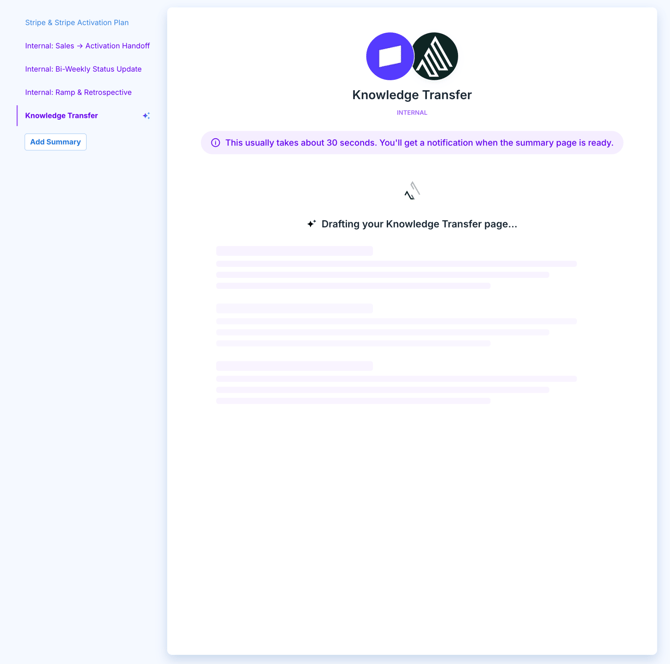
Regenerating Knowledge Transfer
You can regenerate Knowledge Transfer at any time. Approving a regenerated draft adds a new Knowledge Transfer page and never overwrites an existing one. If you no longer need the earlier page, you can delete it.
Limitations
- Fixed page structure: The page follows a standard structure. In the current iteration, you can't set a custom template per Playbook.
- Late account Accords: If the account-level Accord is created after the deal Accord, the deal Accord isn't linked automatically. Set the Parent Accord with Generate Knowledge Transfer.
Troubleshooting
No Knowledge Transfer page on a new Accord.
The Accord likely had no Parent Accord when it was created, often because the account-level Accord didn't exist yet. Use Generate Knowledge Transfer to select a Parent Accord and run the agent. Also confirm the agent is on in Settings → Accord Intelligence → Agents and for the Accord's Playbook.
"No existing Accords found for the associated Salesforce account."
Accord couldn't match an existing Accord to the account in your CRM. Select the Parent Accord yourself from the picker.
The Generate Knowledge Transfer button is missing.
The button doesn't appear on account-level Accords or on Playbooks. Open a deal Accord instead.
A second Knowledge Transfer page appeared.
Regenerating adds a new page each time you approve a draft. Earlier pages stay in place until you delete them.
If you're having any difficulty with Knowledge Transfer, contact support@inaccord.com.